Interactive Troubleshooter
Before diving into the manual guides, use this wizard to diagnose the most common issues based on your symptoms. Prefer a fullscreen view? You can also open the standalone troubleshooter.
Suggested Solution: Dial it back
Comprehensive blocking can sometimes be too aggressive and break site layouts. Try switching to Basic blocking or disabling it entirely via Settings > Privacy & Security.
If this doesn't fix it, we're very happy to help personally! Please report the issue so we can improve Leef.
Suggested Solution: Check Recovery Mode
If the site is broken even with basic blocking, an internal component might be stuck. Try launching in Recovery Mode and selecting Reset Window or Reset Config.
Still broken? We want to hear about it. Please reach out and we'll help you get it sorted.
Suggested Solution: Disable Ad-blocking for YouTube
YouTube has recently started aggressively blocking ad-blockers. To watch videos, you may need to disable Leef's ad-blocker entirely via Settings > Privacy & Security. We are working on a more permanent fix!
Not working? Please let us know. We track these changes closely to keep Leef compatible.
Suggested Solution: Disable "Warp Speed" Lab
You likely enabled YouTube Warp Speed in leef://labs. This skips
unskippable ads by playing them at 16x speed, but it can sometimes get stuck on the main video. Try
toggling it off.
Suggested Solution: Disable Background Limit
In Settings > Privacy & Security, make sure "Background Limit" is toggled OFF. When enabled, Leef pauses all background audio and video to save resources.
Still stopping? We're happy to investigate. Open a ticket or email us!
Suggested Solution: Check Efficiency Mode
Efficiency Mode throttles background tabs to 30% CPU. If your audio stream is high quality, this can cause stuttering. Try disabling Efficiency Mode in Settings > Performance.
If it's still stuttering, we want to know. Help us tune our performance by reporting it.
Suggested Solution: Enable Efficiency Mode
If you have many tabs, Efficiency Mode is your best friend. It throttles background tabs to save RAM and CPU. Enable it in Settings > Performance.
Browser still slow? We're happy to help you diagnose it. Please contact us.
Suggested Solution: Rebuild AppData
If the browser is slow with only a few tabs, there might be corrupted data. Try the Rebuild AppData option in Recovery Mode (hold Shift at launch).
No luck? We're very happy to help personally. Please open a bug report.
Suggested Solution: Toggle Hardware Acceleration / GPU Settings
Visual glitches, black/white windows, or flickering are usually caused by conflicts with the GPU process. Try launching Leef from your terminal/command line with the --disable-gpu flag. If the window displays correctly, go to Settings > Performance and disable Hardware Acceleration.
Alternatively, you can launch in Recovery Mode (hold Shift at launch) and select Reset Window Layout to reset corrupt graphic states.
Suggested Solution: Check Connection & DNS
Network errors like ERR_CONNECTION_RESET are usually external. Try restarting your router
or checking your firewall. See more in Other Issues.
Can't connect? We're happy to help you troubleshoot. Please get in touch.
Suggested Solution: Use Recovery Mode
For persistent crashes or startup failures, Recovery Mode is the best tool to reset your configuration without losing data.
Still crashing? We're very happy to help you fix it! Please report the crash.
Suggested Solution: Reset & Re-run Setup
You can re-trigger the first-launch experience or clear all local browsing data at any time by going to Settings > Privacy & Security and using the Re-run Setup Wizard or Clear Browser Data buttons.
Need a deep clean? You can also launch in Recovery Mode (Hold Shift at launch) and select rebuild appdata.
Suggested Solution: Download Direct Update
If the in-app automatic updater fails to download or apply a new version, you can always download and run the latest installer directly from the official Leef GitHub Releases page.
Suggested Solution: Use OS-Native Version
This error is a known bug that occurs when trying to run the Windows version of Leef via compatibility/emulation layers (like Wine or Proton) on macOS or Linux. Please make sure you have downloaded and installed the correct native build built for your specific operating system (e.g. macOS .dmg/.pkg or Linux package).
Suggested Solution: Bypass Windows SmartScreen
Because Leef is a newly released, open-source project, Windows Defender SmartScreen might display a message saying "Windows protected your PC". To finish installation, click the More Info link on that screen, and then select the Run Anyway button that appears.
Suggested Solution: Allow Installation in macOS Settings
To open Leef on macOS for the first time, you must right-click (or Control-click) the application icon and select Open from the context menu. If you double-clicked it and got blocked by Gatekeeper, open the macOS System Settings app, navigate to Privacy & Security, scroll down to the Security section, and click the button to allow Leef to open.
Suggested Solution: Enable Live Autocomplete
To maximize your privacy, Leef disables search queries autocomplete by default so that nothing is sent to search engines as you type. If you prefer live search suggestions, you can turn this option on by going to Settings > Privacy & Security and toggling ON the Live Autocomplete setting.
Suggested Solution: Check System Date & Time
Chromium requires highly accurate system time to establish secure HTTPS connections. If your computer's system clock is off by even a few minutes, security handshakes will fail and show certificate warnings. Go to your operating system's settings and verify that your date, time, and timezone are set to synchronize automatically.
Suggested Solution: Automatic Search Engine Fallback
This is expected behavior! Google is currently changing their search engine frequently, so some things may break with certain searches. To ensure you can always find what you're looking for, if a Google search fails, Leef automatically falls back to DuckDuckGo.
Installation
Leef is officially available for Windows, macOS, and Linux. You can read the setup steps for your platform below.
Windows Installation
1. Grab the latest .exe from our GitHub
Releases page.
2. Run the installer. You may see a "Windows Protected your PC" popup: this is because we haven't purchased a code-signing certificate yet. Click More Info and then Run Anyway.
3. Leef installs and launches automatically. No bundled extras, just the browser.
macOS Installation
1. Download the latest Universal .dmg from our GitHub
Releases page.
2. Double-click the downloaded .dmg file to mount it.
3. Drag the Leef icon into your Applications folder.
4. Since we do not sign our builds with an Apple Developer certificate yet, you will need to right-click the app in your Applications folder and select Open on the first launch to bypass the system Gatekeeper check.
On restricted networks, you may need to run the installer as an administrator.
Setup Wizard
On first launch, Leef walks you through a quick setup. No account creation, no newsletter signup.
First-Time Configuration
Toggle the Leef News feed and configure your privacy settings. The setup takes seconds.
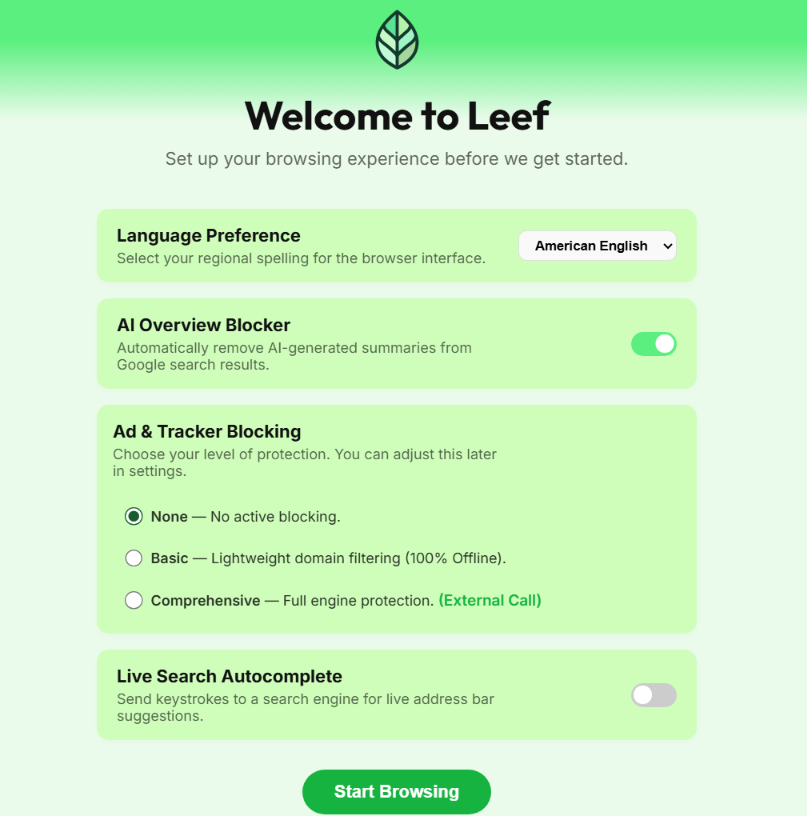 Note: Interface shown is from v0.5.2 and is subject to change during
development.
Note: Interface shown is from v0.5.2 and is subject to change during
development.
Missed a step or want a fresh start? You can re-run the entire Setup Wizard or clear your local browsing data at any time via Settings > Privacy & Security.
Ad-blocking
Leef includes a built-in ad-blocker with tiered protection levels, giving you control over how much gets through.
Blocking Tiers
- None: No active blocking.
- Basic: Lightweight domain filtering, processed entirely offline.
- Comprehensive: Full engine protection using external filter lists. Blocks trackers, ads, and known malware domains.
GPC Signal
Leef sends the Global Privacy Control (GPC) signal with every request, automatically telling websites that you do not want your personal data sold or shared. Under laws like California's CCPA and Europe's GDPR, participating websites are legally required to respect this signal.
Standard-Compliant Verification (v0.5.1+)
Leef verifies GPC compliance using the official GPC standard. Instead of monitoring unreliable page scripts, Leef checks for the presence of the /.well-known/gpc.json file at the site's origin, ensuring your privacy signal is honored without fingerprinting risks.
GPC Unsupported Blocklist (v0.6.1+)
Starting with Leef v0.6.1, the browser ships with a continuously updated, built-in blocklist of domains identified as GPC non-compliant. When you visit a website on this blocklist (such as Amazon, Google, Facebook, or TikTok), Leef will display a red No GPC Support warning badge in the address bar's Globe Menu.
Without GPC compliance, websites may sell/share your browsing habits, track you across the web, build ad-targeting profiles, or ignore your explicit opt-out requests.
View GPC BlocklistManual Verification & Site Verification States
When you click the Globe Menu in the address bar, Leef shows the site's verification state:
- Self-Verified: The site hosts its own official
/.well-known/gpc.jsonfile indicating active compliance. - Manually Verified: The site has been audited by the Leef team and marked compliant in the browser database. In this state, the Globe Menu explicitly details why the site was verified.
Verification Reason Criteria (1–5):
If manually verified, the menu will show one or more of these reasons:
- 1: Privacy Policy explicitly states it respects GPC as a legal opt-out request.
- 2: Stated publicly, or in private correspondence with the Leef team or journalists, that they respect the GPC signal.
- 3: Technically audited by the Leef team and confirmed to comply.
- 4: Utilizes a known privacy-respecting framework that honors GPC globally.
- 5: Part of a verified network of privacy-first domains.
Safety Caveats (1–6):
Leef applies safety caveats to warn users about potential data protection limitations. These are only displayed if a site has specific known behaviors that could partially breach GPC principles (they are not shown for fully compliant sites):
- Caveat 1 (Internal Data Use): Even though GPC signals are respected, the site may still use data internally for analytics, retention, or internal research.
- Caveat 2 (Unverified Enforcement): The site has technical compliance in place, but there is no hard evidence that they strictly comply with privacy requests.
- Caveat 3 (Partial Embed Ignore): The main site is compliant, but some elements or third-party sub-services embedded on the site may ignore GPC.
- Caveat 4 (Non-Audited Desktop Client): The site is compliant, but the company's desktop applications/launchers are not audited.
- Caveat 5 (Third-Party Investor Influence): The site is owned by an outside investor (e.g. Tencent, Amazon, Google) which may not follow the same privacy rules.
- Caveat 6 (Legal Gray Area): The site uses legal gray areas to process your data (e.g., AI chatbots using chat history despite GPC headers).
Please note: While these lists are currently accurate, as GPC regulations become more strictly enforced, websites may implement compliance and be removed from the blocklist in the future. This is why Leef's GPC database is hosted via public Gists and built directly into the browser, allowing for real-time list updates without requiring full application updates.
Site Identity
Transparency is key. Clicking the Globe Icon in the address bar gives you an instant breakdown of the site you're visiting.
The Globe Menu
The Globe Icon provides a clear summary of the current site:
- Ad-block stats: Real-time count of blocked trackers on the current page.
- WHOIS Lookup: See who owns the domain without leaving the browser.
- Security Details: Certificate info and connection strength.
While the Globe Icon shows ad-blocking statistics, to change your blocking level or disable it entirely, you must go to Settings > Privacy & Security.
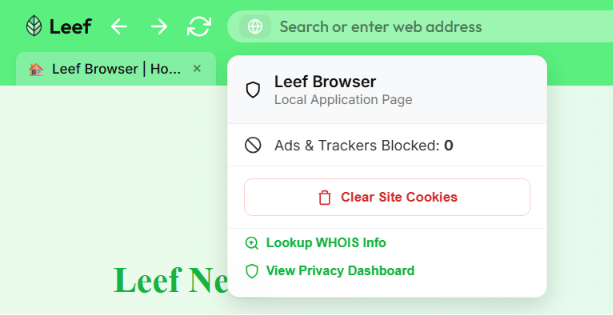 Note: Interface shown is from v0.5.2 and is subject to change during
development.
Note: Interface shown is from v0.5.2 and is subject to change during
development.
Leef Hub
The Hub is your new tab page: a clean workspace for the sites you actually use.
Managing Tiles
Add, edit, and pin your favorite sites. Hover over a tile to see edit and delete options. No sponsored content, ever.
Efficiency Mode
Efficiency Mode helps Leef stay fast by managing system resources automatically.
Leef Limiter
When enabled, Efficiency Mode hibernates background tabs after a period of inactivity and limits CPU usage. Great for keeping things snappy when you've got a dozen tabs open.
AI-Free Search
Leef stops Google AI Overviews from generating entirely, keeping search results clean and link-first.
Slop Filtering
Leef automatically filters out AI-generated summary boxes from search results, saving bandwidth and giving you direct access to the links you searched for.
Leef News
Stay informed without being tracked. Leef News is a private, locally-fetched RSS feed from Yahoo.
Private Headlines
Headlines are fetched directly on your machine. Leef doesn't track what you read or build a profile from your clicks. Dismiss any headline with the "I don't care" button.
Leef Labs
Experimental tools that can be toggled in leef://labs. These are works in progress and may not
be stable.
Slop Scanner
Analyzes highlighted text for common markers of AI-generated content. Simply select a passage, right-click, and select "Detect AI Text" for a heuristic gut-check. It's not perfect (nothing is), but it helps identify potential slop in real-time.
Recovery Mode
If Leef is crashing or behaving unexpectedly, Recovery Mode provides a safe way to diagnose and fix the issue.
How to trigger
Hold the Shift key while launching Leef. A specialized menu will appear allowing you to reset your configuration or clear app data without losing your bookmarks.
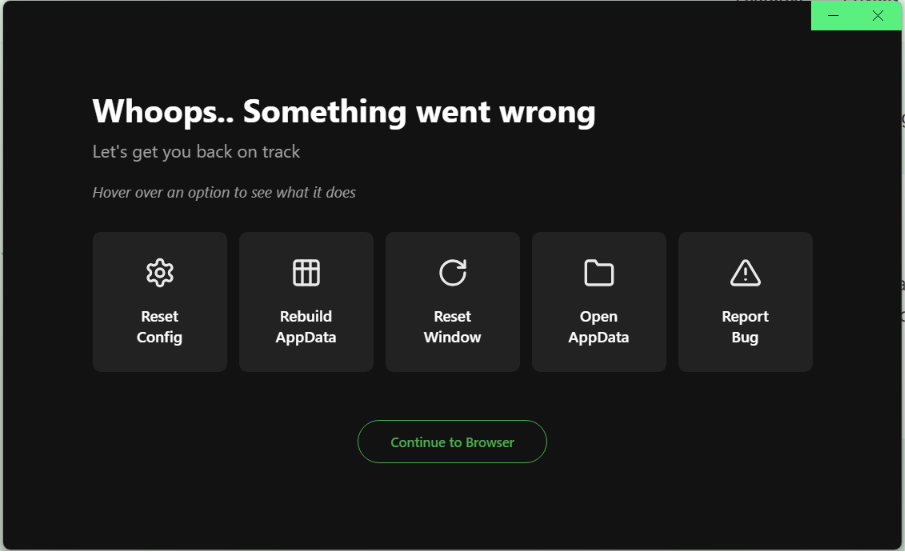 Note: Interface shown is from v0.5.2 and is subject to change during
development.
Note: Interface shown is from v0.5.2 and is subject to change during
development.
Resetting AppData
If Recovery Mode doesn't resolve the issue, you can perform a full reset of Leef's data.
Manual Reset
On Windows, navigate to: %APPDATA%/Leef and delete the folder. This will remove all your
settings, history, and bookmarks, so make sure you've saved anything you need first.
Other Common Issues
Issues related to the underlying Chromium engine or general browser behavior.
Hardware Acceleration
If you experience visual glitches, black screens, or screen flickering, try toggling Hardware Acceleration in Settings > Performance. Some graphics cards have compatibility issues with Chromium's GPU process.
High Memory / CPU Usage
Chromium can be resource-intensive. If Leef is using too much RAM, check the internal Task Manager (Press Shift + Esc) to see which tab is the culprit. We also recommend enabling Efficiency Mode to hibernate inactive tabs.
"Leef is already running"
If the browser won't open because it thinks it's already running, open your system Task
Manager (Ctrl+Shift+Esc), find any leef.exe processes, and click End
Task. This usually happens if the browser didn't close cleanly.
Page Crashes ("Aw, Snap!")
If a specific tab keeps crashing, it's often a conflict with the site's JavaScript. Try clearing the cache for that site via the Globe Icon > Clear Site Cookies. If it persists, try disabling Hardware Acceleration.
Network Errors (ERR_...)
Common errors like ERR_CONNECTION_RESET or ERR_NAME_NOT_RESOLVED are usually
related to your local network or DNS. Try restarting your router, or check if DNS over
HTTPS in Settings > Advanced is causing conflicts with your ISP.
Certificate Errors
If you see "Your connection is not private," check your system's date and time settings. Chromium-based browsers are very strict about time synchronization for SSL certificates.
Media Playback (DRM)
Leef supports Widevine DRM for services like Netflix and Spotify. If these sites won't play, ensure your internet connection is stable and that you aren't using an aggressive VPN that blocks DRM verification servers. DRM is enabled by default and cannot be disabled.
Extensions Support
Leef does not support external browser extensions at this time. We are currently exploring ways to implement extension support in future updates while fully maintaining our strict privacy standards.
Bug Reporting
Found a bug? We want to hear about it. Depending on the nature of the issue, you can report it through our public or private channels.
Public Issues (GitHub)
For general bugs, feature requests, or UI issues, please use our GitHub repository. This allows other users to see if their issue is already being addressed.
Open GitHub IssuesPrivate Support (Email)
If you have a sensitive issue or prefer to communicate privately, we are very happy to help. Send us an email and we'll get back to you as soon as possible.
contact.qtech@proton.meSerious or Private Issues
If you've found a security vulnerability or a serious bug that requires privacy, please use our private reporting form. This goes directly to the core team.
Private Bug ReportLegal Disclaimer
Disclaimer: Leef Browser is built on the Chromium engine. While we make every effort to strip out telemetry and do not collect personal data, Chromium may still transmit certain signals (e.g., safe‑browsing checks) to Google. We cannot control or guarantee how Google processes these signals. Use the browser at your own risk; we are not liable for any data transmitted by the underlying engine.